
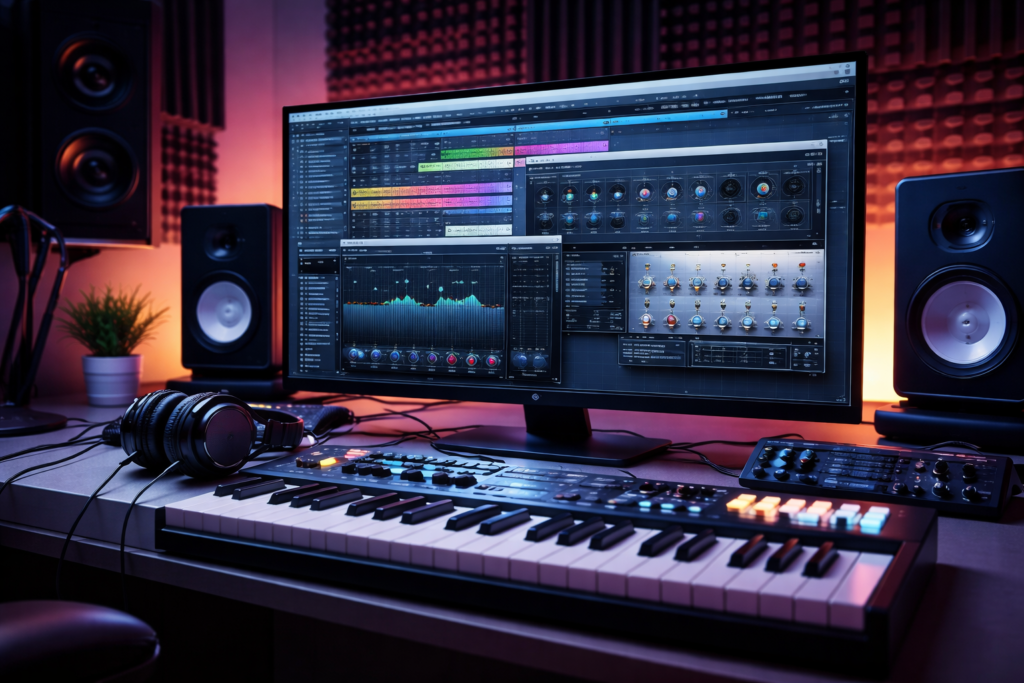
Virtual Studio Technology plugins have fundamentally changed the way musicians, producers, and audio engineers work. Before VST existed, recording a professional-quality track required thousands of dollars’ worth of hardware synthesizers, outboard effects racks, and dedicated studio space. Today, a single laptop loaded with VST plugins can replicate — and in many cases surpass — the capabilities of those classic setups.
In this guide, you will learn everything you need to know about VST plugins: what they are, how they work, the different types available, how to choose the right ones for your setup, and how to install them. Whether you are a complete beginner setting up your first home studio or an experienced producer looking to expand your toolkit, this is the only resource you need.
What is Virtual Studio Technology (VST)?
Virtual Studio Technology is a software interface standard that allows audio plugins to integrate seamlessly with digital audio workstations (DAWs). In plain terms, a VST plugin is a piece of software — either an instrument or an audio effect — that runs inside your DAW and adds sound-generating or sound-processing capabilities to your productions.
The VST standard was created and is maintained by Steinberg, the German music software company behind Cubase. It has become the dominant plugin format in the world of music production, supported by virtually every major DAW on the market.
A Brief History of the VST Standard
Steinberg introduced the original VST specification in 1996, bundling it with Cubase 3.02. This first version allowed third-party developers to create software effects that could run natively inside the DAW — a concept that was revolutionary at the time. Shortly after, VST Instruments (VSTi) were introduced, enabling software synthesizers and samplers to be played in real time via MIDI.
VST 2.0 arrived a few years later, significantly expanding the standard by adding full VSTi support and the ability to receive MIDI data. This version became the most widely adopted in history and remained the backbone of plugin development for over a decade.
Steinberg released VST 3 in 2008, bringing important improvements: better CPU efficiency, a more flexible routing architecture, side-chain support, and improved handling of plugin parameters. VST 3.x, the current iteration, added features like note expression and a refined software development kit (SDK). Crucially, Steinberg released the VST 3 SDK under the open-source MIT license, allowing developers to build compatible plugins and hosts freely.
Today, VST 2 and VST 3 plugins coexist in most production environments, though many developers and DAW companies are moving exclusively toward VST 3 for its technical advantages.
How Virtual Studio Technology Plugins Work
At their core, VST plugins perform one of two jobs: they either generate audio (instruments) or process existing audio (effects). Both types run inside a VST host — most commonly a DAW like Ableton Live, FL Studio, Cubase, or REAPER — which manages the flow of audio and MIDI data through the plugins.
When you load a VST instrument on a track in your DAW, the host sends MIDI note data to the plugin. The plugin’s digital signal processing (DSP) engine interprets that data and generates audio output in real time. The output is then routed back into the DAW’s mixer, where you can apply further processing, balance levels, and record the result.
VST effects work slightly differently. Instead of receiving MIDI, they receive the audio from a track, process it — for example, by compressing its dynamic range or adding reverb — and pass the modified audio along to the next plugin in the chain or to the mixer. You can chain multiple VST effects in series, with each plugin processing the output of the one before it.
Both types expose a graphical user interface (GUI) that you interact with by clicking knobs, sliders, and buttons, much like the front panel of a hardware unit. Behind the scenes, every control corresponds to a plugin parameter that your DAW can automate, letting you program changes to the sound over time.
VST vs. Other Plugin Formats: A Quick Comparison
VST is not the only plugin format in existence. Depending on your DAW and operating system, you may encounter several others. Here is a brief overview of how they compare:
| Format | Full Name | Platform | Key Notes |
| VST / VST3 | Virtual Studio Technology | Windows, macOS, Linux | Universal standard; VST3 is the modern version with better performance |
| AU | Audio Units | macOS only | Apple’s native format; required for Logic Pro and GarageBand |
| AAX | Avid Audio Extension | Windows, macOS | Required for Pro Tools; most plugins sold in VST also come in AAX |
| CLAP | CLever Audio Plugin | Windows, macOS, Linux | Modern open standard gaining traction; designed to fix VST3 limitations |
| LV2 | LADSPA Version 2 | Linux (primarily) | Open-source standard popular in the Linux audio community |
For most producers on Windows or macOS, VST (specifically VST3) and AU (on Mac) will cover every plugin you could possibly want. The vast majority of plugins are released in VST, AU, and AAX simultaneously.
The Two Main Types of Virtual Studio Technology Plugins
All VST plugins fall into one of two primary categories: VST Instruments (VSTi) and VST Effects (VSTfx). Understanding the distinction is fundamental to building an effective plugin toolkit.
VST Instruments (VSTi)
VST Instruments generate audio. You play them via MIDI — either from a MIDI keyboard, a MIDI clip in your DAW, or a piano roll. The plugin receives the note data and produces sound accordingly. VSTi plugins cover an enormous range of sounds and synthesis methods, including:
- Software synthesizers: These generate sound from scratch using various synthesis methods. Subtractive synthesizers shape oscillator waveforms using filters and envelopes. Wavetable synths (like Serum and Vital) cycle through stored waveforms for complex, evolving timbres. Frequency modulation (FM) synths use one oscillator to modulate another for metallic, bell-like, or aggressive tones. Granular synths slice audio into tiny ‘grains’ and rearrange them for atmospheric, experimental textures.
- Samplers and sample players: Instead of synthesizing sound, these plugins play back pre-recorded audio samples. A rompler plays back fixed samples in response to MIDI notes (think orchestral libraries). A full sampler like Native Instruments’ Kontakt lets you load, edit, and script your own sample libraries.
- Drum machines and beat tools: Dedicated percussion instruments, ranging from classic hardware emulations (like Roland TR-808 and TR-909 clones) to full-featured groove boxes and pattern sequencers.
- Hybrid and unique instruments: Many modern instruments defy simple categorization, blending sampling, synthesis, and physical modeling into a single interface. Spectrasonics Omnisphere is perhaps the most famous example.
VST Effects (VSTfx)
VST Effects process existing audio. They sit in your DAW’s signal chain and modify sound as it passes through them. The major categories of VST effects include:
- Dynamics processors: These control the volume and dynamic range of audio. The main types are compressors (reduce the difference between loud and quiet parts), limiters (prevent audio from exceeding a set ceiling), gates (mute audio below a threshold), and transient shapers (adjust the attack and sustain of percussive sounds).
- Equalizers (EQ): Used to boost or cut specific frequency ranges. A good EQ is arguably the single most important mixing tool. Options range from simple fixed-band EQs to highly detailed parametric EQs like the FabFilter Pro-Q 3, which can create precise cuts and boosts at any frequency.
- Time-based effects: Reverb adds simulated room or space acoustics to a sound. Delay creates distinct echoes. Chorus, flanger, and phaser use subtle pitch shifting and timing differences to create modulation effects that add width and movement.
- Distortion and saturation: These add harmonic content and warmth by deliberately overdriving the signal. Saturation emulates the gentle distortion of analog hardware, while more extreme distortion and bitcrusher plugins create heavily degraded, lo-fi sounds.
- Pitch and vocal processing: Pitch correction (Auto-Tune style), vocoders, harmonizers, and formant shifters all fall into this category. They are essential for modern vocal production.
- Spectral and analysis tools: Spectrum analyzers and oscilloscopes let you see your audio visually, helping you make more informed mixing decisions.
Top-Rated VST Plugins by Category and Need
With tens of thousands of VST plugins available, knowing where to start can feel overwhelming. The following recommendations are organized by type and budget to help you build a well-rounded toolkit.
Best Free VST Plugins for Beginners and Bedroom Producers
You do not need to spend any money to get started with excellent plugins. The free VST ecosystem is remarkably mature, and several free options rival paid alternatives costing hundreds of dollars.
Best Free Synthesizers
- Vital (by Matt Tytel): Arguably the best free synthesizer ever released. Vital is a spectral wavetable synth with a stunning interface, an extensive modulation system, and a built-in wavetable editor. A free tier gives you full synthesis capability; paid tiers add preset libraries. It is the ideal first synthesizer for any producer.
- Surge XT: A fully open-source subtractive and hybrid synthesizer with a deep, complex feature set. Surge XT covers everything from classic analog tones to experimental digital sounds. It is particularly strong for sound design and has an active development community constantly adding new features.
Best Free Effects Plugins
- Valhalla SuperMassive: A reverb and delay plugin from Valhalla DSP — a company whose paid plugins are industry standards — released entirely free. SuperMassive produces massive, swirling atmospheric sounds and is perfect for creating huge reverb tails, cosmic delays, and ambient textures.
- TDR Nova: A parallel dynamic EQ that is one of the most capable free mixing tools available. It functions as both a traditional EQ and a multiband compressor, making it an essential mixing plugin.
- Kilohearts Essentials: A free bundle of over twenty modular effects including reverb, delay, flanger, distortion, limiter, and more. Each plugin is simple and CPU-efficient, making this an excellent starter effects collection.
Best Free Samplers and Instruments
- Decent Sampler: A free, lightweight sampler plugin that plays back community-created instrument libraries. Thousands of free libraries are available covering pianos, strings, guitars, ethnic instruments, and more. It is the fastest way to add realistic acoustic instruments to your productions.
- Komplete Start (Native Instruments): A free version of Native Instruments’ flagship Komplete bundle. It includes Kontakt Player (a powerful sample playback engine), a basic version of the Massive synth, a selection of instrument libraries, and several effects plugins. It is one of the most comprehensive free music production packages available.
Best Paid VST Plugins by Category
When you are ready to invest in professional tools, the following plugins represent the best-in-class options in each category. These are the plugins you will find on the hard drives of professional producers, mixing engineers, and sound designers worldwide.
Best Synthesizers for Sound Design
- Xfer Records Serum: The most popular wavetable synthesizer on the market. Serum is beloved for its visual workflow, high-quality sound engine, and massive community of preset packs and tutorials. If you produce electronic music of any genre, Serum is a near-essential purchase.
- Spectrasonics Omnisphere 2: An enormous hybrid synthesizer and sample library. Omnisphere combines a massive library of acoustic and electronic sounds with a deep synthesis engine, hardware synth integration, and a granular mode. It is a one-stop-shop for high-quality, unique sounds across virtually any genre.
- Native Instruments Massive X: The successor to the legendary Massive synthesizer. Massive X is built around a flexible dual-oscillator wavetable engine with an extensive modulation matrix, making it particularly strong for aggressive bass and lead sounds.
Best Mixing and Mastering Plugins
- FabFilter Pro-Q 3: The gold standard equalizer in the mixing world. Pro-Q 3 combines surgical precision with excellent sound quality, dynamic EQ capabilities, and a spectrum analyzer. It is used on virtually every professional mix in some capacity.
- iZotope Ozone: A comprehensive mastering suite that covers everything from EQ and compression to stereo widening, limiting, and AI-assisted mastering assistance. It is available as a standalone mastering tool and as an insert plugin.
- Waves SSL E-Channel: An emulation of the iconic SSL 4000 E-Series channel strip, one of the most recorded-on mixing consoles in history. It delivers the characteristic warmth, punch, and clarity of the hardware original at a fraction of the price.
Best for Analog Hardware Emulation
- Universal Audio UAD Plugins: UAD plugins are widely considered the most accurate hardware emulations available. They cover everything from vintage compressors and equalizers (Neve, SSL, API) to tape machines and guitar amplifiers. Note that some UAD plugins require proprietary hardware or a subscription to their UAD Spark platform.
- Arturia V Collection: A bundle of over thirty synthesizer and keyboard emulations based on legendary hardware, including the Minimoog, Juno-106, Jupiter-8, CS-80, and many more. The sound quality and accuracy are exceptional, and the collection covers decades of synthesis history.
Best VST Plugin Bundles for Maximum Value
Bundles offer significant savings compared to buying individual plugins. If you are building a studio from scratch, starting with a bundle is often the most cost-effective strategy.
- Native Instruments Komplete: The most comprehensive production bundle on the market, ranging from Komplete 15 Select (budget-friendly entry point) up to Komplete 15 Ultimate Collector’s Edition. Higher tiers include Kontakt with thousands of instrument libraries, a large suite of synthesizers, and a full effects library.
- Waves bundles: Waves offers a large catalog of classic hardware emulations and mixing tools. Their bundles go on sale frequently, making it possible to acquire dozens of professional plugins at significantly reduced prices.
- Plugin Boutique and Beatport collections: Both platforms offer curated bundles from various developers and regularly feature time-limited sales and deals. Signing up for their newsletters is an effective way to acquire premium plugins at a discount.
How to Choose the Right VST Plugins for Your Needs
The sheer number of available plugins can be paralyzing. Use the following framework to make smart purchasing decisions and avoid building a bloated plugin collection you never actually use.
Assess Your DAW and Computer System Requirements
Before purchasing any plugin, verify that it is compatible with your specific setup. Key factors to check include:
- Operating system: Confirm that the plugin supports your OS version. Most plugins support Windows 10/11 and macOS 12 or later. Linux support is improving but remains less universal. Always check the developer’s system requirements page.
- Plugin format: If you are on a Mac using Logic Pro, you will want AU versions in addition to VST. If you use Pro Tools, you need AAX. FL Studio, Ableton Live, REAPER, and Cubase all support VST and VST3.
- CPU and RAM: Complex plugins — especially orchestral sample libraries and CPU-intensive synthesizers — can be demanding. Check the developer’s recommended specifications and compare them with your system. A modern multi-core processor and at least 16 GB of RAM are recommended for serious production work.
- Bit depth and VST folder: Ensure you are installing 64-bit plugins (which is the standard today). Know where your DAW scans for plugins — typically a default VST folder like C:\Program Files\VSTPlugins on Windows or /Library/Audio/Plug-Ins/VST on macOS.
Define Your Goal: Mixing, Mastering, or Sound Design?
Rather than buying plugins randomly, build your collection with intention. Identify your primary activity and fill the gaps in that workflow first:
- Beat makers and producers: Prioritize a strong synthesizer, a versatile sampler or drum machine, and a basic effects chain (EQ, compressor, reverb, delay).
- Mixing engineers: Focus on a high-quality parametric EQ, a transparent compressor, a limiter, and a suite of saturation and analog emulation tools.
- Mastering engineers: A mastering-grade EQ, a multi-band compressor, a brickwall limiter, and a stereo imaging tool are the foundation of a mastering chain.
- Sound designers and composers: Invest in a diverse range of synthesis methods — at least one wavetable synth, one sampler, and one granular or experimental instrument.
Set Your Budget: From Freeware to High-End
Allocate your budget wisely. The free plugins recommended earlier in this guide are genuinely excellent and will serve you well for years. There is no shame in building an entirely free plugin toolkit — many successful producers have done exactly that.
When you are ready to invest, prioritize tools you will use on every project. A high-quality EQ and compressor will serve you far better than ten specialized creative plugins you use occasionally. Think of free plugins as the foundation and paid plugins as targeted upgrades for specific needs in your workflow.
Watch for sales. Waves, Native Instruments, Plugin Boutique, and Audio Plugin Deals all offer significant discounts throughout the year, particularly around Black Friday and during seasonal sales. Subscribing to their newsletters or deal alert sites can save you substantial money on premium plugins.
How to Install and Use Your First VST Plugin: A Quick-Start Guide
Installing VST plugins for the first time can be confusing. This step-by-step guide walks you through the complete process using Vital — the best free synthesizer — as an example. The process is very similar for virtually all other VST plugins.
Step 1: Download a Free VST Plugin (Example: Vital)
Navigate to vital.audio and click the Download button. You will be given the option to sign up for a free account, which unlocks the basic preset library. Download the installer for your operating system — Windows (.exe) or macOS (.pkg).
Step 2: Run the Installer and Choose Your VST Folder
Launch the installer and follow the prompts. During installation, you will typically be asked where to install the VST3 file. The default locations are:
- Windows (VST3): C:\Program Files\Common Files\VST3
- macOS (VST3): /Library/Audio/Plug-Ins/VST3
- macOS (AU): /Library/Audio/Plug-Ins/Components
Leave these set to the defaults unless you have a specific reason to change them. Your DAW is configured to scan these standard locations by default.
Step 3: Scan for New Plugins in Your DAW
Open your DAW and navigate to its plugin scanning or management settings. The exact location varies by application:
- FL Studio: Options > Manage Plugins, then click Find More Plugins
- Ableton Live: Preferences > Plugins, then enable the VST3 folder and click Rescan
- Logic Pro: Logic automatically scans for AU plugins on launch — no manual scan needed
- REAPER: Options > Preferences > VST, then click Re-scan
- Cubase: Studio > VST Plug-in Manager, then click Update
Wait for the scan to complete. Your DAW will index all newly installed plugins and make them available in its browser.
Step 4: Load the Plugin on a MIDI Track
Create a new MIDI or instrument track in your DAW. Open the instrument slot (sometimes called an Insert or an Instrument rack slot) and browse for Vital in your plugin list. Double-click it to load it. You should see Vital’s interface appear.
Step 5: Play and Explore
Select a preset from Vital’s library to start with a sound that is already configured. If you have a MIDI keyboard connected, play some keys — you should hear sound immediately. If you do not have a keyboard, draw notes into your DAW’s piano roll and press Play.
From here, experiment with the knobs and settings. Try adjusting the filter cutoff, the envelope attack and release, or load different presets to get a feel for the synth’s range. Learning to use one instrument deeply will teach you skills that transfer to every other plugin you add to your collection.
faqs
What is a VST plugin?
A VST plugin is a software add-on for a digital audio workstation (DAW) that adds a virtual instrument (like a synthesizer or sampler) or an audio effect (like reverb, EQ, or compression). VST stands for Virtual Studio Technology, a standard created by Steinberg in 1996.
What is the difference between VST, VST3, and VSTi?
VST refers to the original plugin format standard. VST3 is the modern, improved version with better CPU efficiency, more flexible routing, and additional features like note expression. VSTi (VST Instrument) is a term used specifically for VST plugins that generate sound via MIDI, distinguishing them from VST effects (VSTfx) which process existing audio.
Are VST plugins free?
VST plugins range from completely free to several hundred dollars for premium options. The free ecosystem is extensive and high-quality — plugins like Vital, Surge XT, and Valhalla SuperMassive are genuinely competitive with paid alternatives. Many paid plugins also offer free trials or lite versions.
What is the best free VST synthesizer?
Vital is widely considered the best free synthesizer available. It is a professional-grade wavetable synth with an intuitive interface, a powerful modulation system, and a built-in wavetable editor. Surge XT is an excellent second option, particularly for more complex and experimental sound design.
How do I install VST plugins in my DAW?
Download the plugin installer from the developer’s website and run it. The installer will typically place the plugin file in your system’s standard VST folder. Then open your DAW, navigate to its plugin settings or preferences, and run a plugin scan. The new plugin will then appear in your DAW’s plugin browser. See the detailed installation guide earlier in this article for step-by-step instructions.
Where is the VST folder on Windows and Mac?
On Windows, VST3 plugins are typically installed to C:\Program Files\Common Files\VST3. Older VST2 plugins are usually found in C:\Program Files\VSTPlugins or C:\Program Files\Steinberg\VSTPlugins. On macOS, VST3 plugins live in /Library/Audio/Plug-Ins/VST3, and Audio Units are in /Library/Audio/Plug-Ins/Components.
What is a VST host?
A VST host is any application that can load and run VST plugins. The most common VST hosts are digital audio workstations (DAWs) like Ableton Live, FL Studio, REAPER, Cubase, and Logic Pro (for AU plugins). Standalone plugin hosts like Gig Performer and Bidule also exist for live performance use cases.
What are the best VST plugins for mixing?
For mixing, the core essentials are a high-quality parametric EQ (FabFilter Pro-Q 3 is the industry standard), a versatile compressor (Waves SSL G-Master, Universal Audio 1176, or the free TDR Nova), a reverb and delay (Valhalla Room or Valhalla SuperMassive), and a limiter for the master bus (Fabfilter Pro-L 2 or iZotope Ozone). Building your mix chain around these four categories will cover the vast majority of production needs.
Do VST plugins work on Linux?
Yes, although Linux support is not universal. VST3 plugins can run on Linux, and the open-source CLAP and LV2 formats have strong Linux communities. DAWs like REAPER have solid Linux support. However, many commercial plugin developers do not officially support Linux, which can require workarounds like using Wine compatibility layers. The Linux audio ecosystem is improving, but Windows and macOS remain better-supported platforms for most commercial plugins.
What is the difference between VST and Audio Units (AU)?
VST is a cross-platform standard (Windows, macOS, and Linux), while Audio Units (AU) is Apple’s proprietary format that works exclusively on macOS. In practice, the vast majority of commercial plugins are released in both formats simultaneously, so most producers on Mac will have access to the same tools regardless of which format they use. Logic Pro and GarageBand require AU plugins; most other DAWs on Mac support both.
Can I use VST plugins in Pro Tools?
Not directly. Pro Tools uses its own proprietary format called AAX (Avid Audio Extension). However, virtually every major plugin developer releases their products in AAX alongside VST and AU, so you will have access to the same instruments and effects. Some older VST2-only plugins may not be available in AAX, particularly freeware plugins.
What is CLAP and how is it different from VST?
CLAP (CLever Audio Plugin) is a newer open-source plugin format developed as a modern alternative to VST. It is designed with better multi-threading support, more expressive per-note parameter modulation, and a cleaner API that is easier for developers to implement. CLAP is gaining traction — several major DAWs and plugin developers have added support — but VST3 remains the dominant standard. Think of CLAP as a promising next-generation format rather than a VST replacement today.
Are there good free alternatives to Serum or Kontakt?
Yes. Vital is an excellent free alternative to Serum for wavetable synthesis — it shares a similar workflow and is arguably as capable in its free tier. For sampling, Decent Sampler and the free Kontakt Player (included in Komplete Start) provide access to thousands of instrument libraries without the cost of the full Kontakt license. While these free options have some limitations compared to their paid counterparts, they are genuinely excellent tools that many professional producers use regularly.
Conclusion and Next Steps
Virtual Studio Technology plugins have democratized music production in a way that would have seemed impossible just thirty years ago. The tools that were once accessible only to artists with major label budgets are now available to anyone with a laptop and an internet connection.
If you are just starting out, download Vital today and spend time exploring its capabilities. Learn your DAW, experiment with different presets, and gradually build your plugin collection as specific creative needs arise. Resist the urge to amass a large library before you have mastered the fundamentals — depth of skill with a few great tools will always outperform a wide but shallow collection.
As your production skills grow, use the recommendations in this guide to make targeted, intentional investments in your toolkit. Focus on the core mixing essentials first — a great EQ and compressor will transform the quality of your mixes far more than any creative instrument plugin.
The world of VST plugins is constantly evolving, with developers pushing the boundaries of what is possible in software. Bookmark this page and check back for updated recommendations as new standout plugins are released. Happy producing.

Adrian Cole is a technology researcher and AI content specialist with more than seven years of experience studying automation, machine learning models, and digital innovation. He has worked with multiple tech startups as a consultant, helping them adopt smarter tools and build data-driven systems. Adrian writes simple, clear, and practical explanations of complex tech topics so readers can easily understand the future of AI.