
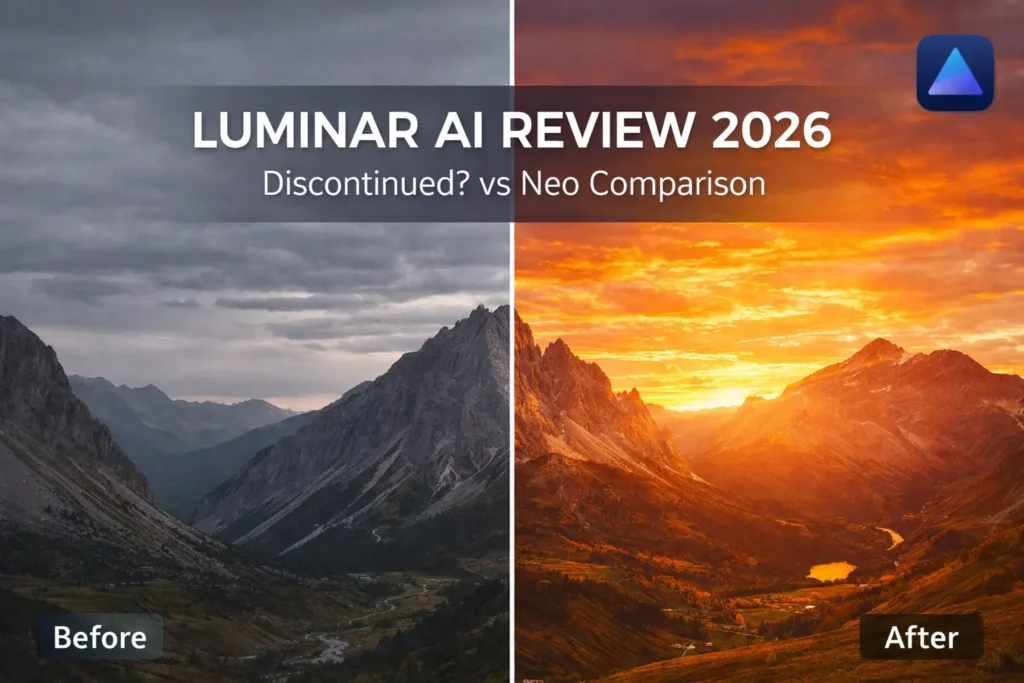
If you’ve been searching for information about Luminar AI, you’ve probably noticed something confusing: Skylum now promotes Luminar Neo everywhere, leaving many photographers wondering what happened to the original AI-powered editor. This comprehensive review cuts through the confusion to explain what Luminar AI is, how it compares to its successor, and whether it’s still worth considering in 2026.
Luminar AI is an AI-powered photo editor from Skylum that revolutionized how photographers approach complex edits. Famous for making tasks like sky replacement and portrait retouching accessible through one-click tools, it democratized professional-level editing for beginners and hobbyists. But the landscape has changed significantly since its launch, and understanding where Luminar AI fits in today’s ecosystem is crucial before making any decisions.
What is Luminar AI? The State of the Software in 2026
Luminar AI launched in 2020 as Skylum’s first fully AI-driven photo editor, designed from the ground up to automate complex editing tasks. Unlike traditional editors that required manual adjustments across dozens of sliders, Luminar AI analyzed your photos and applied intelligent enhancements with minimal input. It quickly gained popularity among photographers who wanted professional results without the steep learning curve of Adobe Photoshop or Lightroom.
Is Luminar AI Discontinued?
Yes, Luminar AI is no longer in active development. Skylum ceased major updates and feature development when they shifted focus entirely to Luminar Neo, which launched in early 2022. This means Luminar AI receives no new features, limited compatibility updates, and minimal technical support beyond basic troubleshooting.
What does this mean for users? The software still works on compatible systems, and existing licenses remain valid. However, you won’t see improvements, bug fixes for newer operating systems, or integration with emerging technologies. Skylum has made it clear that Luminar Neo is their flagship product moving forward, and resources have been redirected there entirely.
Luminar AI vs. Luminar Neo: Key Differences
Understanding the distinction between these two products is essential for making an informed choice. While both leverage artificial intelligence, Neo represents a complete architectural rebuild rather than a simple update.
| Feature | Luminar AI | Luminar Neo |
|---|---|---|
| Development Status | Discontinued | Active development |
| AI Engine | First-generation | Advanced second-generation |
| Layer Support | Limited local adjustments | Full non-destructive layers |
| GenAI Features | None | GenErase, GenExpand, GenSwap |
| Extensions System | No | Yes (Noiseless AI, Upscale, etc.) |
| Plugin Support | Photoshop, Lightroom | Photoshop, Lightroom, Apple Photos |
| Mobile App | Limited functionality | Full-featured iOS/Android |
| Pricing Model | One-time purchase (legacy) | Subscription or one-time |
| Future Updates | None | Regular feature additions |
| System Resources | Moderate | Higher (more powerful) |
Bottom line: For new users, Luminar Neo is the clear recommendation. It offers everything Luminar AI had plus significantly more power, ongoing support, and future-proofing. However, if you already own Luminar AI and it meets your needs, there’s no urgent reason to upgrade unless you need specific Neo features.
Core Features & How to Use Them: A Hands-On Look
Despite being legacy software, Luminar AI still packs impressive capabilities that remain useful for many photographers. Here’s what you can actually do with it.
Transform Your Photos with Sky AI
Sky replacement was Luminar AI’s headline feature, and it remains one of the most impressive AI implementations in photo editing. The tool analyzes your image to detect the sky boundary, then seamlessly replaces it with your choice from dozens of built-in sky options or your own images.
How it works: Select the Sky AI tool, choose a replacement sky from the library, and the software automatically adjusts the lighting and reflections in your photo to match the new sky. You can fine-tune the blend, reposition the sky, and even add atmospheric effects like fog or haze.
Common issue and fix: Users sometimes notice glowing edges where the new sky meets the horizon, especially with complex treelines or buildings. To fix this, reduce the Sky Defocus slider and increase the Close Gaps setting. If problems persist, use the Mask Refinement brush to manually clean up problem areas.
Before and after results can be dramatic, transforming a washed-out daytime sky into a golden hour masterpiece or adding drama to flat landscapes. For travel and landscape photography, this feature alone justified the purchase price for many users.
Perfect Portraits with Skin AI & Portrait Bokeh AI
Portrait editing in Luminar AI combines multiple AI tools to deliver professional retouching without the tedious manual work required in other software.
Skin AI automatically detects faces and applies intelligent smoothing that preserves texture while removing blemishes and evening out skin tone. Unlike simple blur filters, it distinguishes between skin and other facial features, keeping eyes, lips, and hair sharp while smoothing complexion. The tool works on selfies, group photos, and professional portraits equally well.
Portrait Bokeh AI adds beautiful background blur to portraits, mimicking the shallow depth of field created by expensive camera lenses. The AI identifies the subject and creates natural-looking bokeh that separates them from distracting backgrounds. You control the blur amount, and can even add cat-eye or other creative bokeh shapes.
For influencers, bloggers, and anyone regularly posting portrait content to social media, these tools deliver Instagram-ready results in seconds rather than minutes.
Fix Lighting and Enhance Colors with Relight AI & Accent AI
Relight AI is a game-changer for backlit photos or images with harsh lighting. It analyzes the three-dimensional depth of your scene and adjusts lighting accordingly, brightening dark foreground subjects without blowing out already-bright backgrounds. This is particularly valuable for travel photos where you couldn’t control the lighting conditions.
Accent AI might be the most-used feature in Luminar AI. It’s a single slider that analyzes your entire photo and makes intelligent adjustments to exposure, contrast, tone, and saturation based on the content. Think of it as an “enhance” button that actually works intelligently rather than applying a generic preset.
For quick edits when you need fast results, sliding Accent AI to taste, making minor tweaks to specific tools, and exporting can take under 30 seconds per photo.
Essential Tools: The Erase Tool, Presets, and Batch Editing
Beyond the headline AI features, Luminar AI includes practical everyday tools that speed up workflow.
The Erase Tool removes unwanted objects from photos using content-aware fill technology. While not as advanced as newer generative AI tools, it works well for simple removals like tourists in travel photos, power lines, or small distractions. Paint over the object, and the AI analyzes surrounding areas to fill the gap naturally.
AI Presets provide one-click starting points for different photo types. The software ships with dozens of presets for portraits, landscapes, street photography, and more. Each preset intelligently adapts to your specific image rather than applying fixed values, so results look tailored rather than cookie-cutter.
Batch Editing allows you to apply the same edits across multiple photos simultaneously, essential for photographers processing hundreds of images from events or travel. Copy your settings from one edited photo and paste them to an entire folder, with the AI adjusting each image individually.
System Requirements, Pricing, and How to Get It
Before considering Luminar AI, ensure your system can run it properly and understand the current purchasing landscape.
macOS and Windows System Requirements
Minimum Requirements:
- macOS: macOS 10.14.6 or higher, 8GB RAM, 10GB disk space
- Windows: Windows 10 or 11 (64-bit), 8GB RAM, 10GB disk space, DirectX 11 compatible graphics
Recommended Specifications:
- 16GB RAM or more for smooth performance with large RAW files
- SSD storage for faster processing and catalog loading
- Dedicated graphics card with 2GB+ VRAM for AI processing
RAW File Support: Luminar AI supports RAW files from virtually all major camera manufacturers including Canon, Nikon, Sony, Fujifilm, Olympus, Panasonic, and more. However, support for newer camera models released after development ceased may be limited or nonexistent.
Compatibility Note: While Luminar AI may technically run on newer operating systems like macOS Sonoma or Windows 11, Skylum doesn’t guarantee compatibility since the software is no longer updated. Some users report issues with the latest OS versions.
Pricing Model: Subscriptions, Trials, and Legacy Licenses
The pricing situation for Luminar AI has become complicated since Skylum discontinued it as an active product.
Current Status: Luminar AI is no longer officially sold on Skylum’s website. The company has fully transitioned to promoting and selling Luminar Neo. However, you may occasionally find legacy license keys from third-party retailers or resellers, though buyer beware regarding legitimacy and support.
Historical Pricing: When actively sold, Luminar AI was available as a one-time purchase ranging from $79 to $99, depending on promotions. This included lifetime access to the software version you purchased, though “lifetime” now effectively means “until your operating system evolves beyond compatibility.”
Free Trial: A limited free trial was available during the product’s active lifecycle, allowing users to test all features for seven days. Whether trials are still available depends on what legacy installers might be accessible.
Current Recommendation: If you’re interested in Skylum’s AI-powered editing, purchase Luminar Neo directly from Skylum. You’ll get current support, ongoing updates, and guaranteed compatibility with modern systems. Trying to hunt down a legacy Luminar AI license saves minimal money while sacrificing significant value.
Using Luminar AI as a Plugin
One of Luminar AI’s strengths is its ability to integrate into existing workflows as a plugin for Adobe Photoshop and Adobe Lightroom Classic.
As a Photoshop plugin, Luminar AI appears in the Filter menu, allowing you to send images from Photoshop into Luminar for AI-powered edits, then return the processed image as a new layer. This workflow combines Adobe’s precision tools with Luminar’s one-click AI enhancements.
As a Lightroom Classic plugin, you can select images in your Lightroom catalog and open them in Luminar AI for editing. Changes save back into your Lightroom workflow, maintaining organization while accessing AI tools Lightroom lacks.
This plugin functionality remains one of the best reasons existing Luminar AI owners might keep the software installed, even if they’ve moved to other primary editors.
Pros, Cons, and Who Is It For?
Let’s evaluate Luminar AI honestly, considering both its strengths and limitations in the current landscape.
Pros:
- Incredibly easy to use with virtually no learning curve for beginners
- Fast results through intelligent one-click AI tools
- Sky replacement remains impressive and fun to use
- Great for hobbyists wanting professional-looking results quickly
- Works as a standalone editor or plugin
- One-time purchase model (historically) rather than subscription
- Unique AI tools not found combined in other single applications
Cons:
- No longer developed or supported by Skylum
- Compatibility with future operating systems uncertain
- Can be resource-intensive on older computers
- Occasional AI artifacts require manual correction
- Limited advanced features compared to professional software
- No layer-based editing for complex compositing
- Mobile app functionality is minimal
- Cannot purchase legitimately from official sources anymore
Ideal User Scenarios
Luminar AI excels for specific types of photographers and use cases:
Hobbyist photographers who shoot for personal enjoyment rather than professional work will find the automated tools perfect for enhancing vacation photos, family events, and creative projects without investing time in learning complex software.
Bloggers and content creators needing quick turnaround on attractive visuals for websites, social media, or newsletters benefit from the speed and ease of one-click enhancements that make images pop.
Social media influencers can rapidly process and enhance portraits, travel photos, and lifestyle content with professional polish using Skin AI, Portrait Bokeh, and sky replacement features.
Photographers transitioning from smartphone editing who want desktop power without Photoshop complexity find Luminar AI’s interface familiar and approachable while offering significantly more capability.
Limitations to Consider
Professional photographers requiring non-destructive layer-based workflows, advanced masking, or precise manual control will quickly outgrow Luminar AI’s capabilities. Luminar Neo, Adobe Lightroom, or Capture One better serve professional needs.
Users seeking long-term software investments should recognize that Luminar AI has no future development. While it works today, compatibility issues will inevitably arise as operating systems and camera technologies evolve.
Perfectionists who scrutinize details may become frustrated with occasional AI artifacts, particularly around complex edges in sky replacements or unnatural skin smoothing if pushed too far.
Getting Started: A Simple Luminar AI Tutorial
If you have access to Luminar AI and want to see what it can do, here’s a quick walkthrough to create an impressive edit in minutes.
Step 1: Import and First Look
Launch Luminar AI and either import a photo from your hard drive or use the built-in catalog system to organize your image library. The interface presents a clean workspace with your photo centered and tools organized in a sidebar.
Unlike Lightroom’s module-based approach, everything in Luminar AI is accessible from one screen. Templates appear at the top, AI tools in the main panel, and professional controls available when needed.
Step 2: Your First Edit with Accent AI
Start simple. In the Essential tools section, find Accent AI and move the slider to the right while watching your photo. You’ll see contrast, exposure, and color adjust dynamically based on your specific image content.
For most photos, somewhere between 20-50 on the Accent AI slider provides noticeable improvement without looking overdone. This single adjustment often gets you 80% of the way to a finished edit.
Step 3: Replacing a Sky in a Landscape
If your photo includes sky, click the Creative section and select Sky AI. Browse through the included sky library, which ranges from dramatic sunsets to moody storm clouds. Click any sky to see it instantly applied to your photo.
Adjust the Sky Amount slider to control how prominent the new sky appears. Use the relight controls to ensure your foreground lighting matches the mood of your new sky. The Reflection Strength slider adds your new sky reflected in water if your scene includes it.
This feature transforms mediocre landscape photos into attention-grabbing images that look like you captured perfect conditions.
Step 4: Retouching a Portrait and Exporting
For portraits, navigate to the Portrait section and enable Face AI. The software automatically detects faces and allows individual adjustments. Slide Face Light to brighten, Skin Defects to reduce blemishes, and Skin Shine to reduce glare.
Add Portrait Bokeh AI to blur the background, separating your subject. Adjust the amount to taste, keeping it subtle for natural looks or cranking it up for dramatic effect.
When satisfied, click Export in the top-right corner. Choose your file format (JPEG for sharing, TIFF for further editing), adjust quality settings, and select your destination folder. Your edited photo saves while preserving your original file untouched.
This entire process, from import to export, takes under five minutes once you’re familiar with the interface.
FAQ
Is Luminar AI free?
No, Luminar AI is not free. It offered a limited free trial during its active sales period, allowing users to test features for seven days. After the trial, a paid license was required. Since the software is no longer officially sold, obtaining it legally has become complicated.
Can I still buy Luminar AI?
Luminar AI is not officially sold on Skylum’s website anymore. The company exclusively promotes Luminar Neo now. While you might find legacy license keys from third-party retailers or resellers, there’s no guarantee of legitimacy, support, or activation success. Skylum recommends purchasing Luminar Neo instead, which offers superior features and ongoing support.
What’s the difference between Luminar AI and Luminar Neo?
Luminar Neo is the actively developed successor with a completely rebuilt engine, more advanced AI tools including generative features like GenExpand and GenSwap, an Extensions system for specialized tools, full layer support for non-destructive editing, and guaranteed future updates. Luminar AI is the discontinued predecessor with the first-generation AI engine and limited capabilities by comparison.
Does Luminar AI work on Windows 11 and the latest macOS?
It may work on newer operating systems, but compatibility isn’t guaranteed since Skylum no longer updates the software. Some users report successful installation and operation on Windows 11 and recent macOS versions, while others encounter issues. As operating systems continue evolving, compatibility problems will become increasingly likely.
What are the best alternatives to Luminar AI?
For similar ease of use with AI power, Luminar Neo is the direct successor and obvious choice. For professional workflows with industry-standard tools, Adobe Lightroom offers comprehensive editing and organization. For advanced AI capabilities focused on quality enhancement, Topaz Photo AI excels. Free alternatives include Darktable (advanced) or GIMP (general purpose), though neither matches Luminar AI’s specific AI-driven approach.
Can I upgrade from Luminar AI to Luminar Neo?
Skylum occasionally offers upgrade pricing for existing Luminar AI owners, though specific promotions vary. Check Skylum’s website or contact their support for current upgrade offers. Even at full price, Neo provides significant value over trying to continue with discontinued software.
Will my Luminar AI license stop working?
Your existing license should continue working on compatible systems. However, activation servers could potentially be discontinued in the future, and compatibility with newer operating systems isn’t supported. Back up your installation files and license information in case you need to reinstall.
Final Verdict: Should You Use Luminar AI in 2026?
The answer depends entirely on your situation.
If you already own Luminar AI and it meets your needs, there’s no immediate urgency to stop using it. The software still functions, and features like sky replacement, portrait retouching, and one-click enhancements remain valuable. Keep using it until you encounter compatibility issues or need capabilities it lacks.
If you’re considering purchasing Luminar AI specifically, don’t. The software is discontinued, unsupported, and unavailable through legitimate channels. Any money spent on questionable third-party licenses is wasted when Luminar Neo offers objectively superior features with guaranteed support for nearly the same price.
If you’re new to photo editing and attracted to Luminar’s AI-powered approach, invest in Luminar Neo instead. You’ll get everything Luminar AI offered plus years of ongoing development, new features, and compatibility assurance. The learning curve remains minimal, and capabilities far exceed the original.
If you’re a professional photographer, neither Luminar AI nor Neo likely provides all the tools you need as a primary editor. Consider them as supplementary tools or plugins to complement Adobe Lightroom or Capture One for specific AI-powered tasks.
Luminar AI represented an important step in making powerful photo editing accessible to everyone. Its AI-first approach influenced the entire industry, pushing competitors to develop similar intelligent tools. While the software itself has been superseded, its legacy lives on in Luminar Neo and in the AI features now appearing across all major photo editors.
For photographers searching for information about Luminar AI in 2026, the message is clear: appreciate what it accomplished, but look forward to Luminar Neo or other current solutions for your actual editing needs. The AI revolution in photo editing that Luminar AI helped start continues, but the future lies elsewhere.
Last Updated: January 2026 | This article is regularly updated to reflect the current status of Luminar AI and available alternatives.

Adrian Cole is a technology researcher and AI content specialist with more than seven years of experience studying automation, machine learning models, and digital innovation. He has worked with multiple tech startups as a consultant, helping them adopt smarter tools and build data-driven systems. Adrian writes simple, clear, and practical explanations of complex tech topics so readers can easily understand the future of AI.